Learn how to setup and implement Schema Engine on HubSpot.
Getting started
Install the App
1 To install the App, please use this link
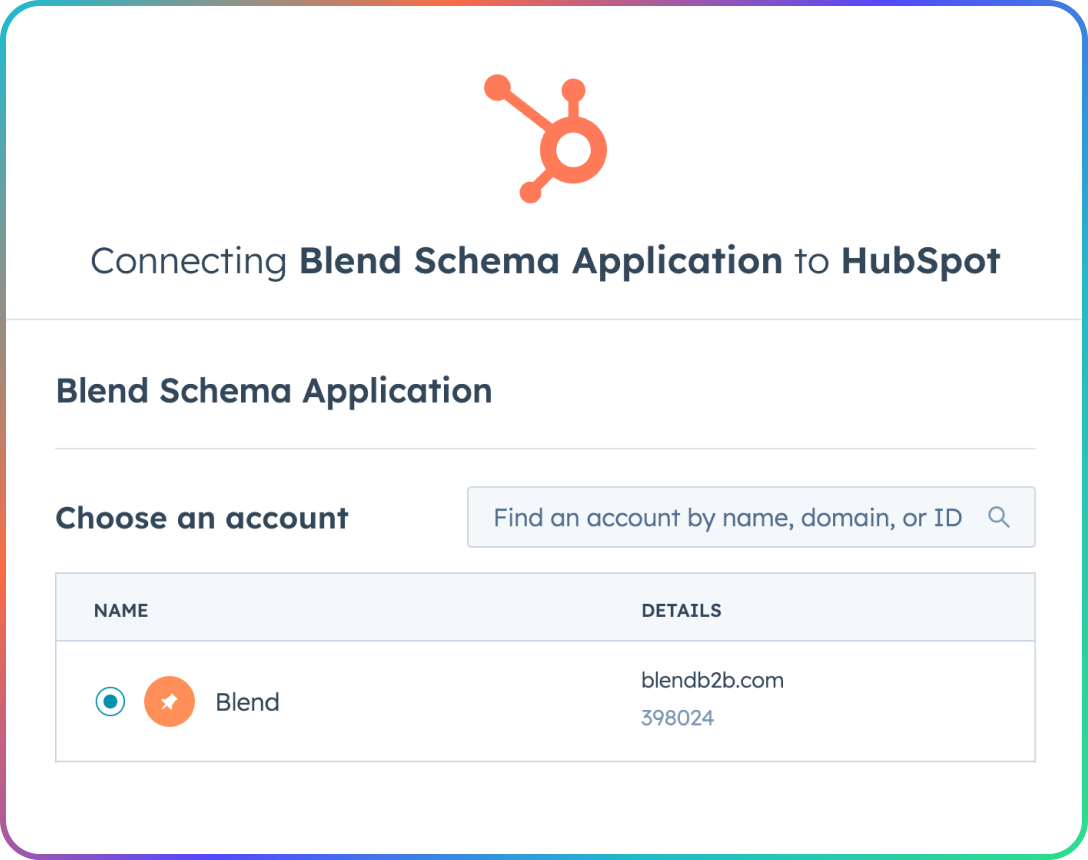
2 Select your HubSpot account
-
If you manage multiple HubSpot portals, choose the account where you want to install Blend Schema
-
Click "Choose Account"
3 Review the requested permissions
-
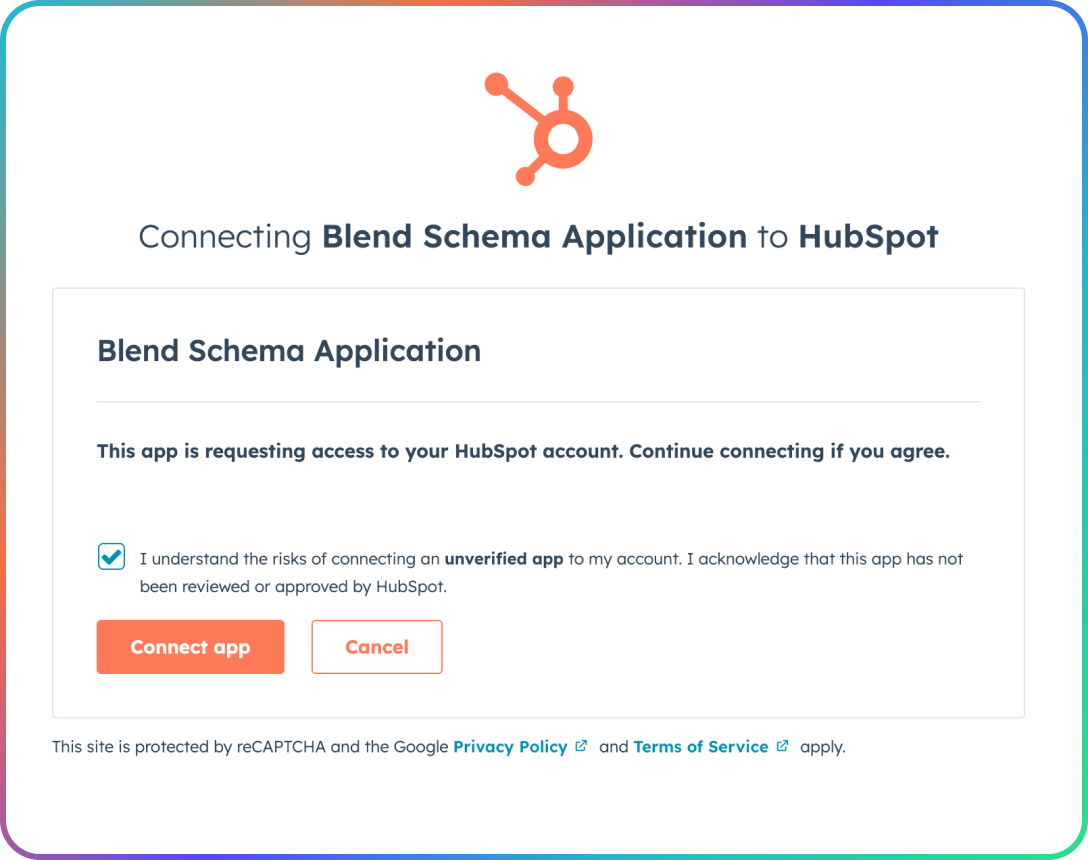
Blend Schema requests access to:
-
Read and write CMS pages: To fetch page content and apply Schema.org markup
-
Read Domains settings: To understand your site structure
-
-
Click "Connect app"
-
Complete registration
-
You'll be redirected to the Blend Schema Service dashboard.
-
The dashboard gives you basic information about your app. You can close this window and return to HubSpot.
-
Installation is complete.
Configure the App
Log in to your HubSpot account
-
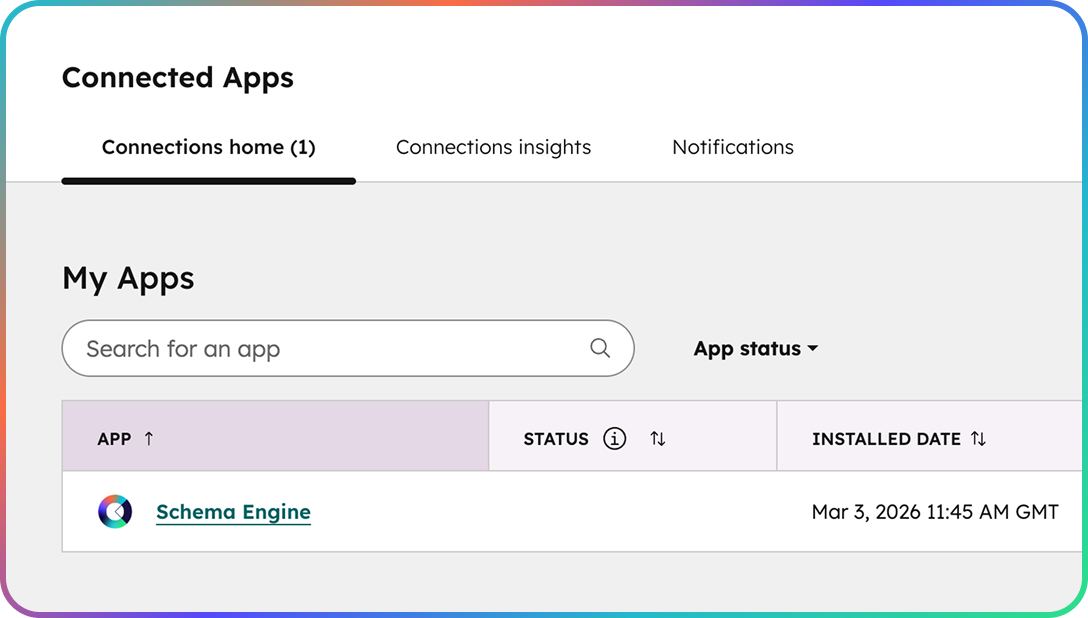
Navigate to your connected apps
-
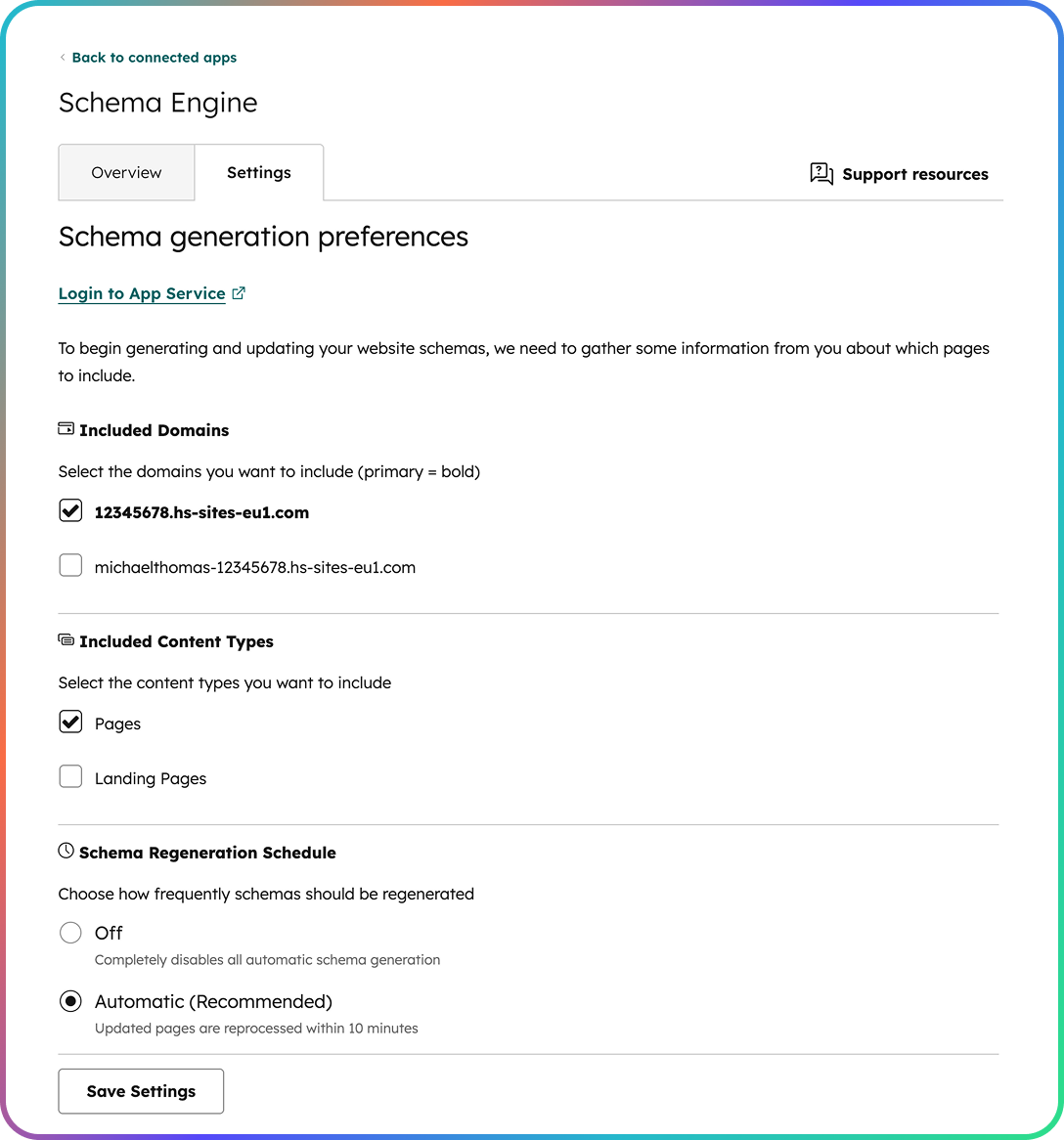
Select "Schema Engine" and select the Settings tab to see configuration options
Narrow your page selection
-
Select "Included Domains"
Select the domains that contain the pages you wish to generate schema for (you'll chose specific pages later)
-
Select "Included Content Types"
You can choose from Pages, or Landing Pages, or both
-
Set "Schema Regeneration Schedule"
You can disable or enable schema generations
-
Save the above settings to generate a shortlist of available pages in your filter
Select pages
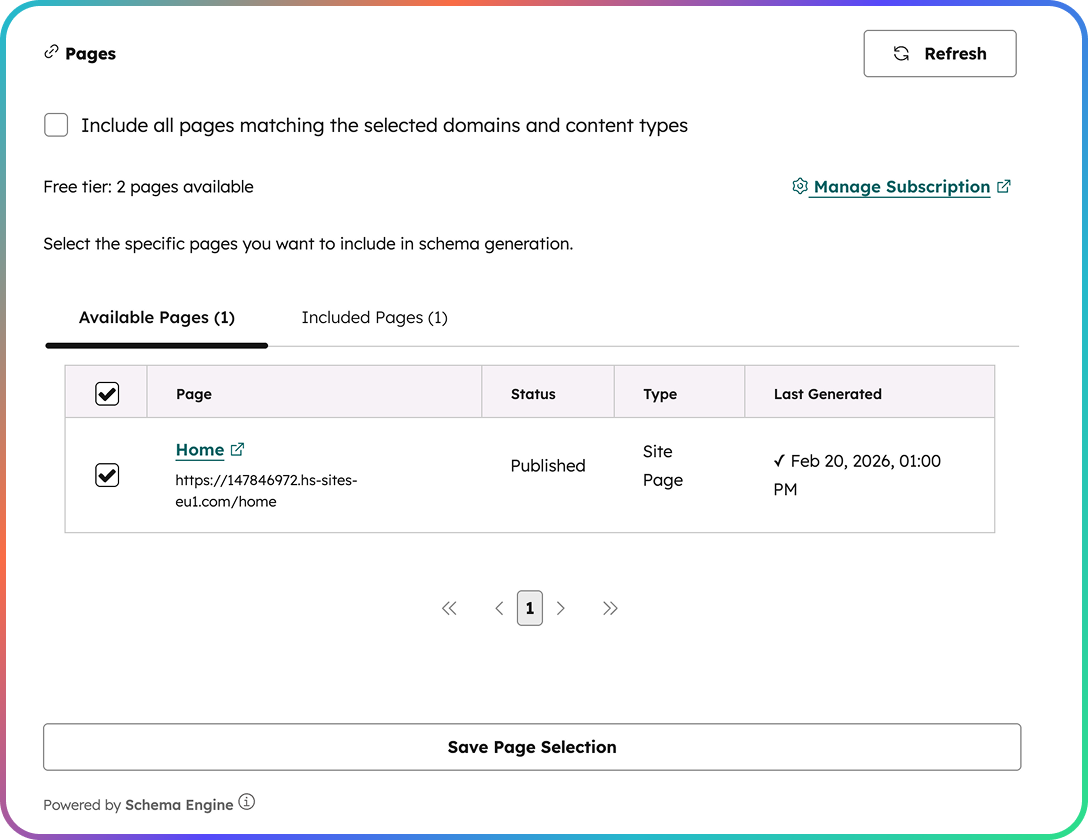
Choose Pages to include in schema generation
-
Browse the paginated shortlist
-
Check the boxes next to pages you want to monitor, or select "Include all" *
-
Save your configuration with "Save Page Selection"
-
Blend Schema will generate and apply schemas to your selection.
-
Blend Schema will monitor your pages for content updates, and regenerate the schemas as required.
* availability dependant on your subscription